Easy Mode
Build charts from a simple form instead of connecting nodes on the canvas
Easy mode lets you build a chart by filling out a short form instead of wiring nodes together. Pick what to measure, add filters and a breakdown, and pick a chart type. The preview updates while you work.
It works with every chart type and also supports charts with more than one series.
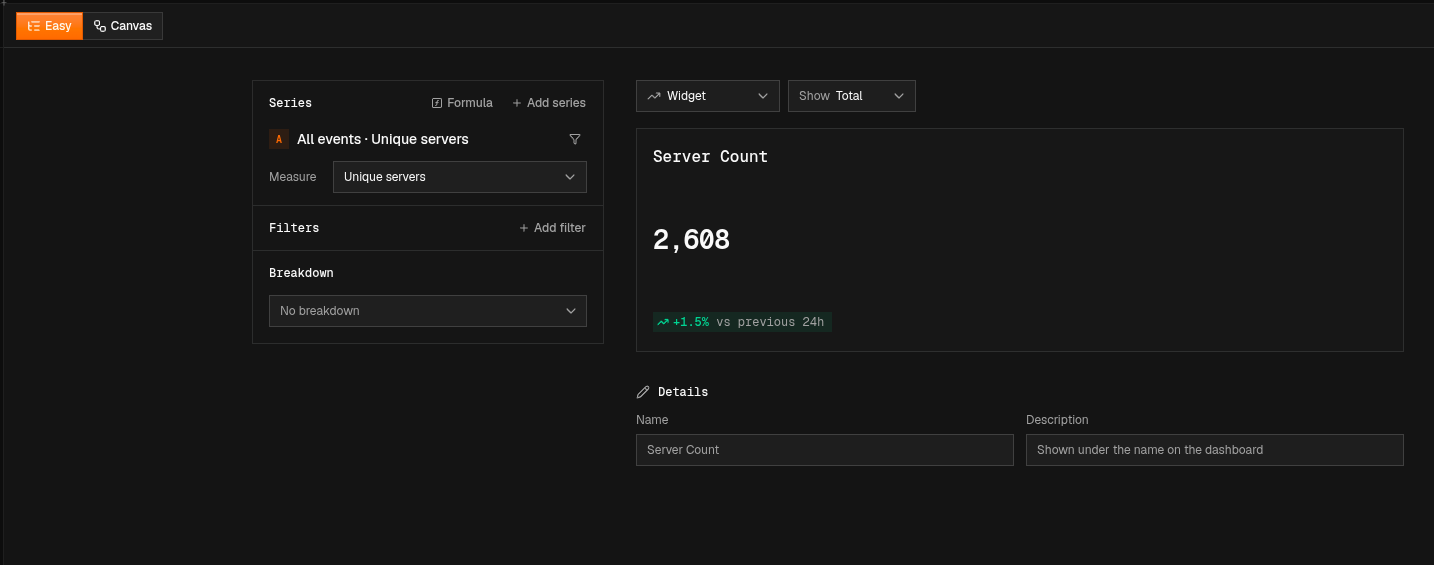
Switching modes
- Easy to Canvas: always possible. The chart carries over as nodes, so you can keep refining it on the canvas.
- Canvas to Easy: possible as long as Easy mode can show the chart. If the pipeline uses something the form can’t represent, the Easy option is disabled and the editor tells you why, for example “Easy mode can’t open this chart: a step combines several inputs.”

Making Easy the default
Canvas is still the default mode for new charts. To open charts in Easy mode by default, go to your Appearance settings and change the chart editor mode under Workspace.
Building a chart
The left panel defines what data the chart shows. The right side controls how it looks.
Series
A series is one value or line in your chart. Each series gets a letter (A, B, …) and a title that shows its data source and measure, for example “All events · Unique servers”.
- Measure chooses what each series calculates, such as Total count or Unique servers.
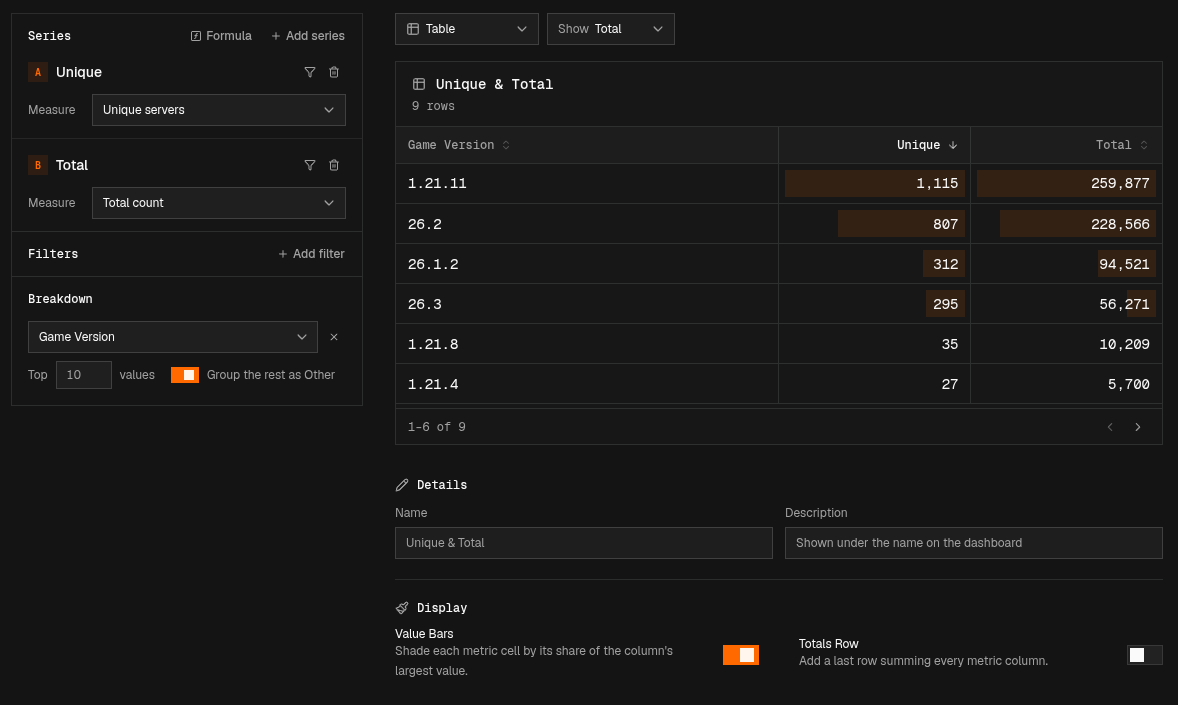
- Click Add series to add another one. On widgets, every series appears as its own value next to the others. On tables, every series becomes its own column. On line, area and bar charts, every series becomes its own line or bar.
- Click the filter icon on a series to add filters that apply only to that series.
- Click the trash icon to remove a series.
Series names are used as legend entries, table column headers, and widget labels.
Click Formula to add a series calculated from your other series.
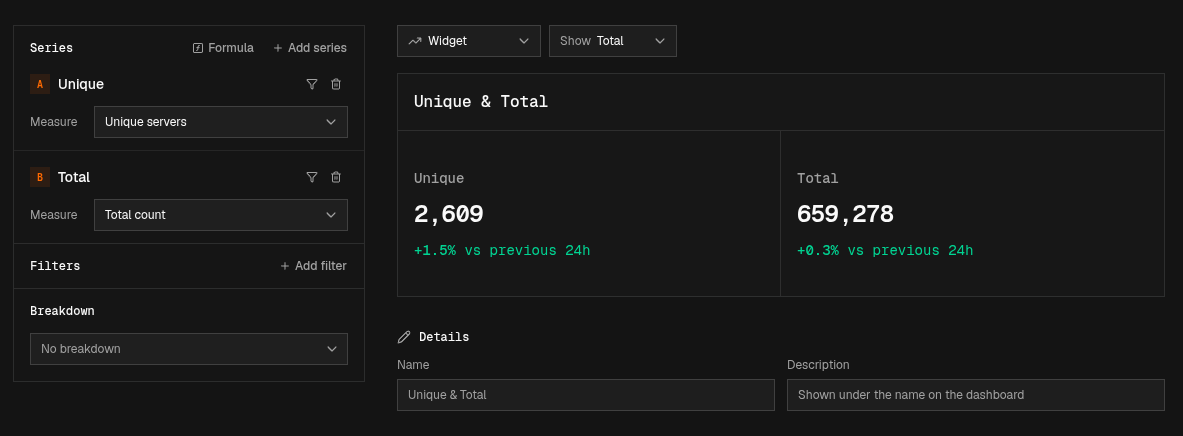
Filters
Filters in the Filters section apply to every series in the chart. Click Add filter, pick a field, and set a value. Each active filter shows up as a chip, for example Core Count = 4. Click the × on a chip to remove that filter.
Use the filter icon on a series when only that series needs filtering, and the Filters section when every series does.
Breakdown
Breakdown splits each series into groups by a field, for example one row per country or one slice per version. Leave it on No breakdown to show one total per series, or click the × next to a field to remove the breakdown.
| Setting | Description |
|---|---|
| Top n values | How many groups to show, ranked by value |
| Group the rest as Other | Combines every group outside the top values into one “Other” group |
Display
Chart type and value
At the top of the preview, choose the chart type and use Show to pick which value the chart displays (for example, Total). The preview updates right away.
Widgets also compare the current value with the previous period, for example “+1.9% vs previous 24h”.
Details
| Setting | Description |
|---|---|
| Name | Title of the chart on the dashboard |
| Description | Optional text shown under the name on the dashboard |
Display options
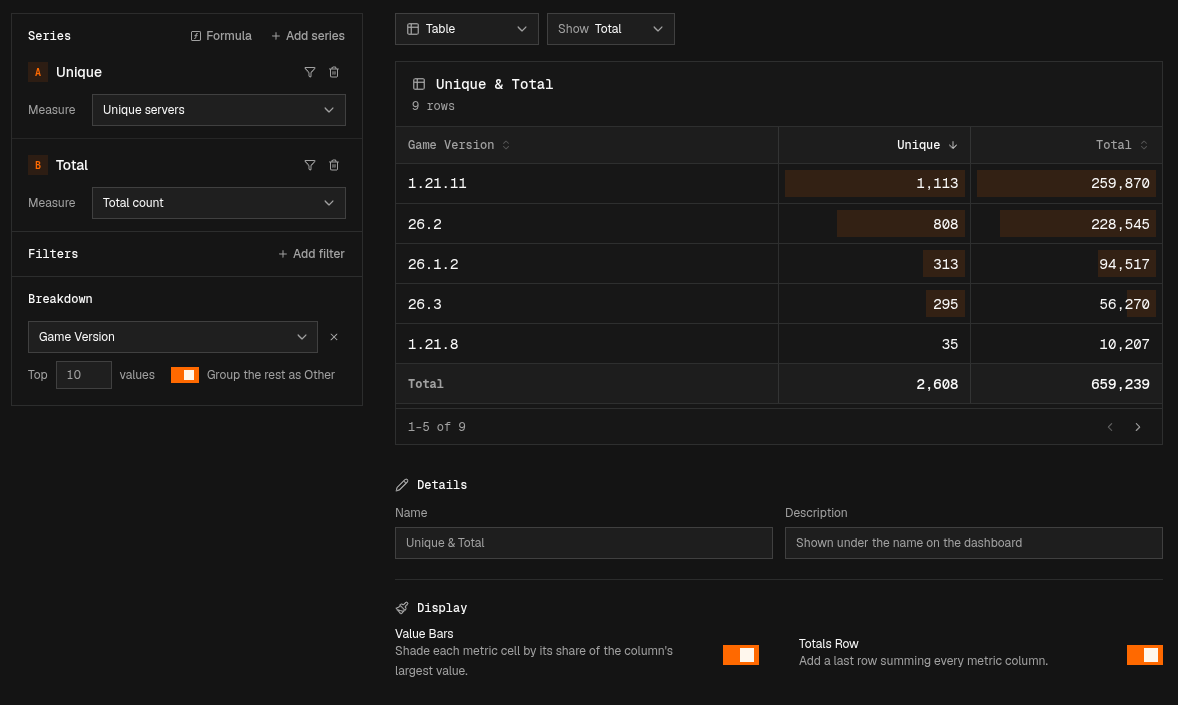
Some chart types have extra options under Display. Tables, for example, have:
| Option | Description |
|---|---|
| Value Bars | Shades each metric cell by its share of the column’s top value |
| Totals Row | Adds a last row that sums every metric column |
Saving
When you have unsaved changes, Unsaved changes appears in the top bar. Click Save to save and keep editing, or Save & close to save and go back to the dashboard.
How Easy mode maps to nodes
If you switch to Canvas, here is where each part of the form ends up:
| Easy mode | Canvas nodes |
|---|---|
| Series | Its own pipeline, from a Data Source to an Output node |
| Measure | An Aggregate node in that series’ pipeline |
| Series filter | A Filter node in that series’ pipeline |
| Filters | Filter nodes in every series’ pipeline |
| Breakdown | A Group By node |
| Formula | A Formula node |
See Flow Nodes for what each node does, and Output & Multi-Series for how multiple series are combined.